Guide Page content
1. How to submit a job
Step 1: Prepare your input
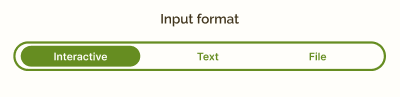
You can input RNA data in three formats:
- Interactive
- Text
- File (.fasta)
First comes the interactive form.
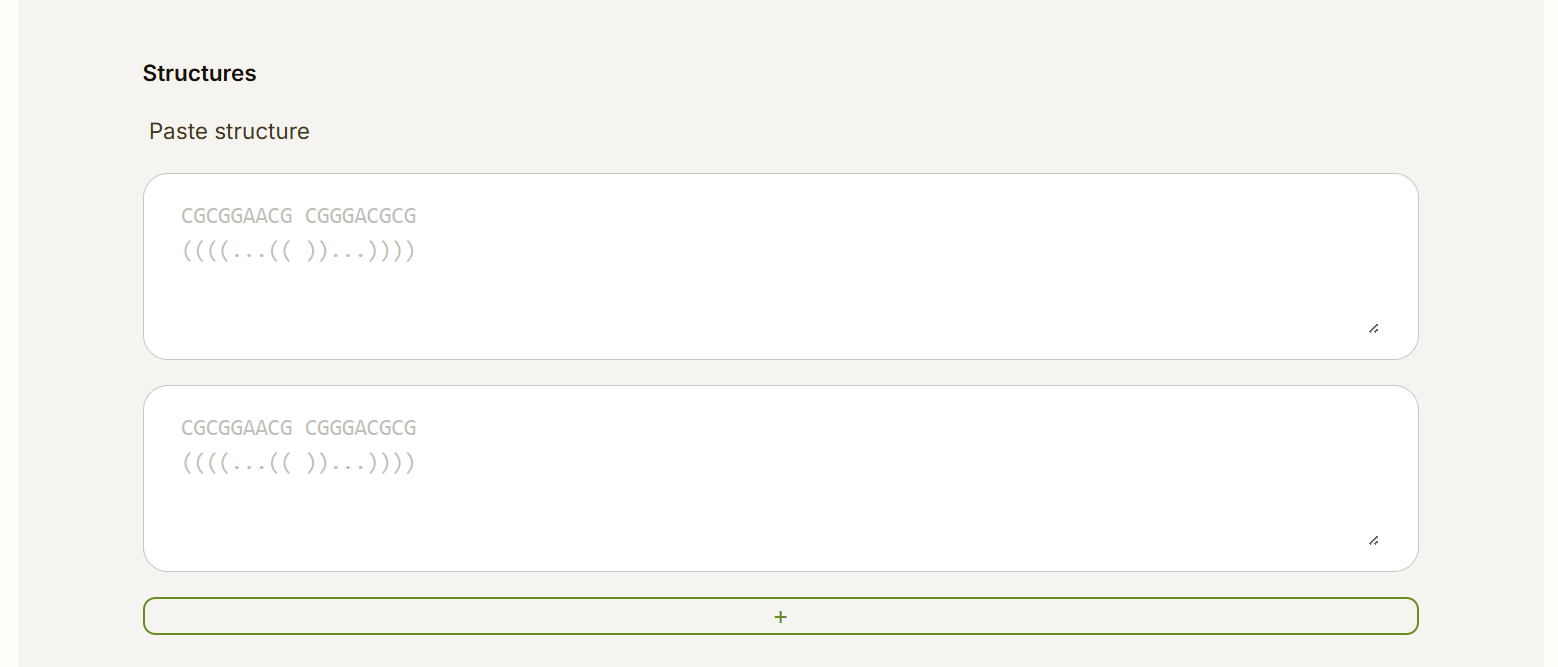
In order to proceed with the job, enter your RNA sequence and secondary structure strand by strand. Press the plus button to enter another strand.
Next, there is a textual format.
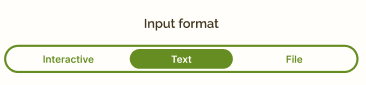
Paste your RNA sequence and secondary structure into the text area.
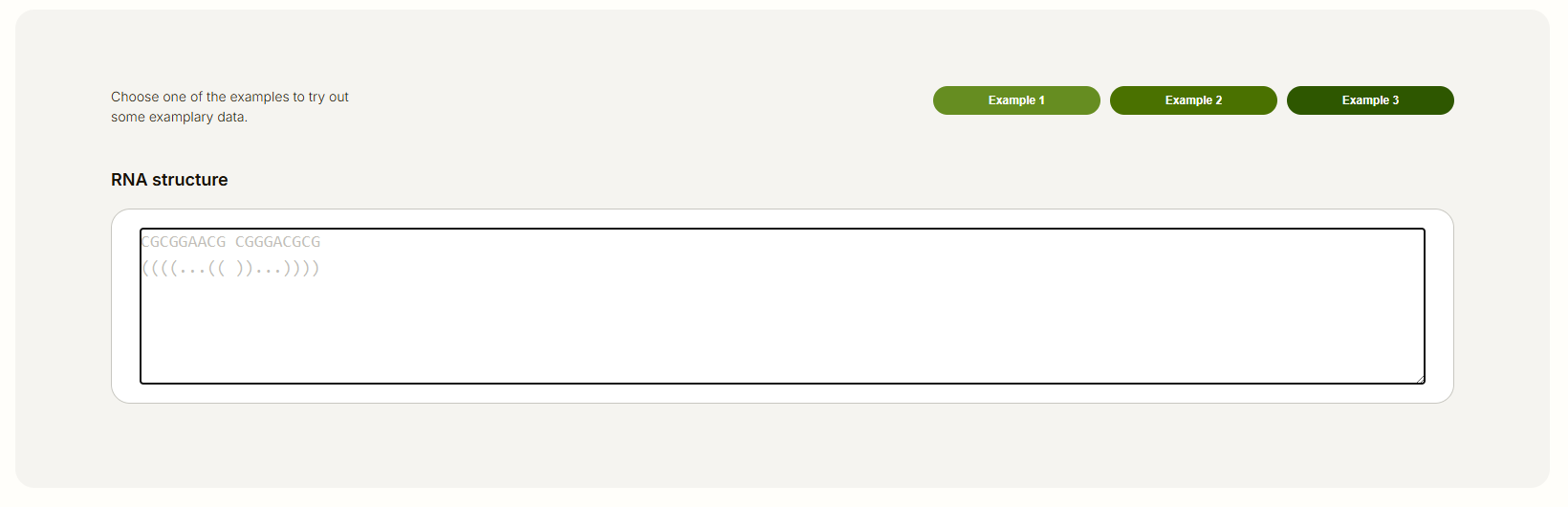
Last but not least – RNA structure in a form of a file.
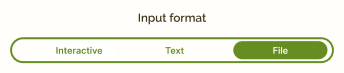
Upload a .fasta file containing your RNA sequence and secondary structure.

After pressing the "Next" button, the system will validate and process your input. If there are any issues, you will receive corrected input if possible, or a message indicating the problem. In case you would like to validate your input without running a job, we also provide a "Validate structure" button.

Step 2: Enter job parameters
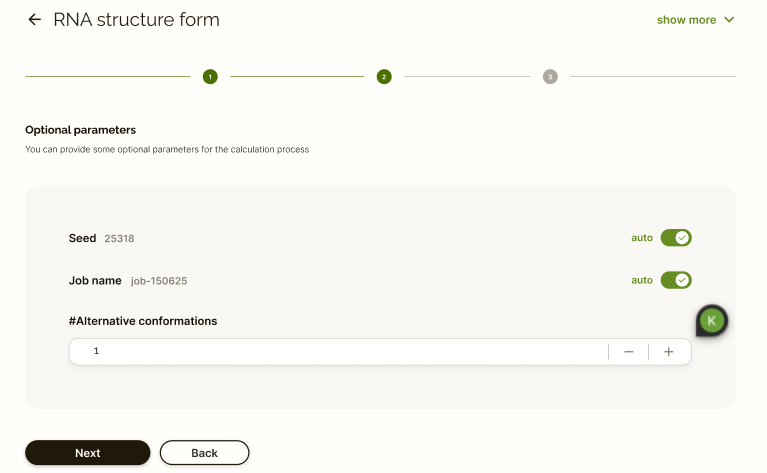
After your input is validated, you can enter parameters such as job name, seed (an integer used for seeding the prediction algorithm), and number of alternative conformations(predictions of the original input with different seeds). Job name and seed can be generated automatically if needed.
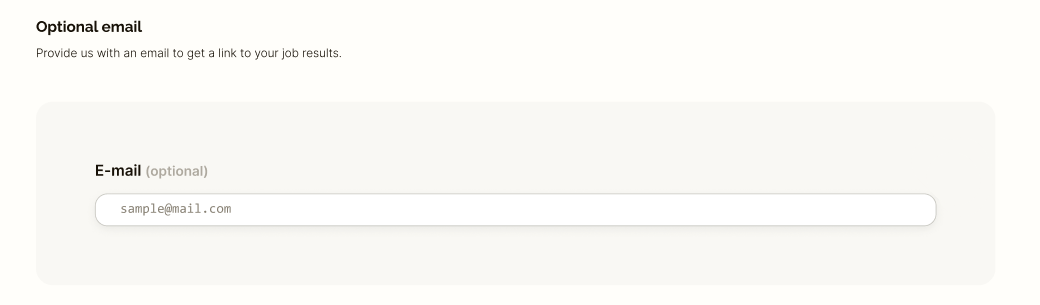
Step 3: Enter your email (optional)
You can enter your e-mail address to receive a notification when your job is complete. You’ll get a URL to the job’s results page and a reminder before it expires. This is optional — you can proceed without providing an e-mail.
2. View your job page
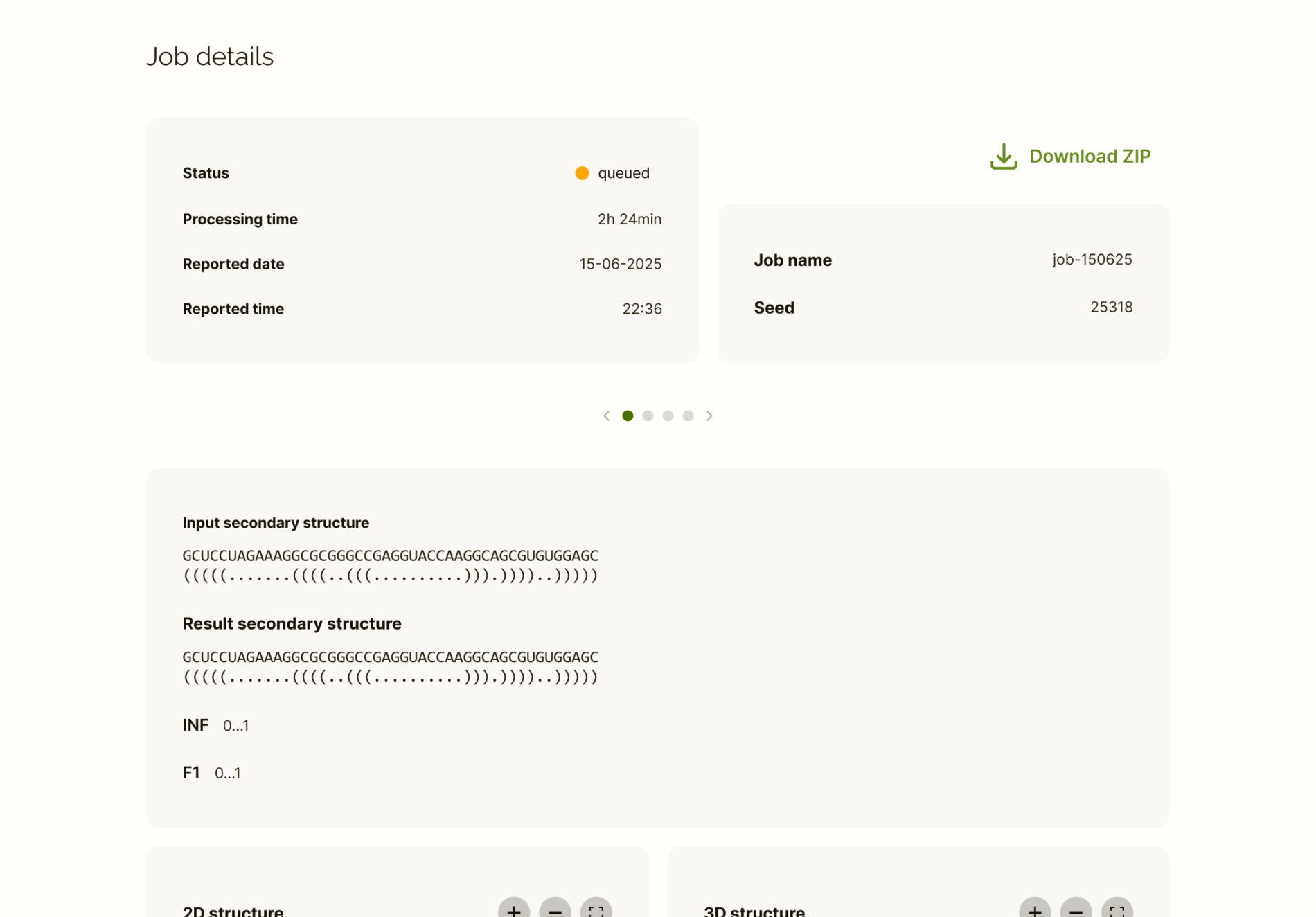
After submitting a job, you will be redirected to the job’s results page. Here you can monitor the status of your job and view results once it’s complete. If you provided an email, a link to the job page will be sent to your inbox, and you will receive a notification when the job is complete. Job expires two weeks after completion, and you will receive a reminder email a day before expiration.
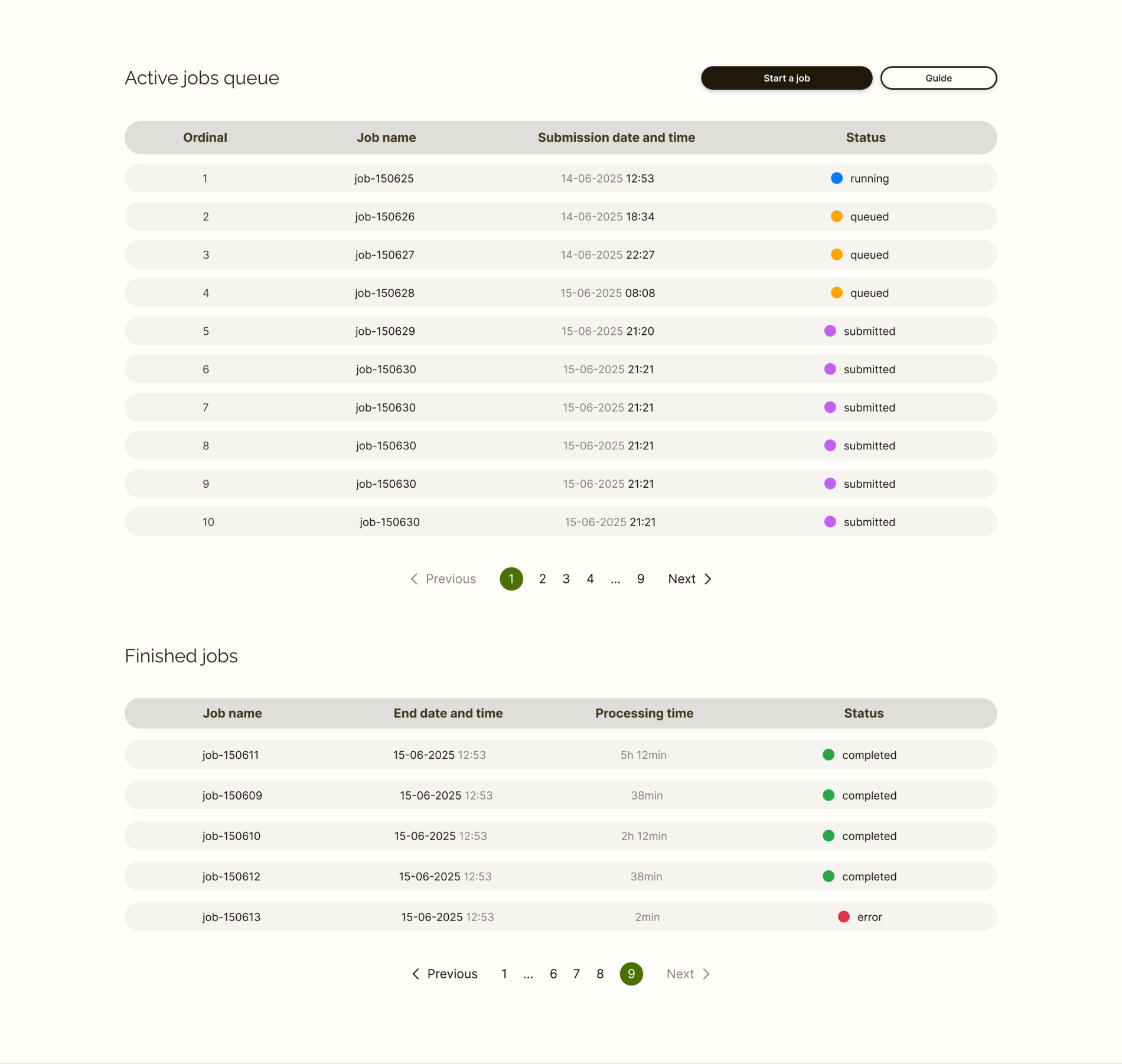
3. See the jobs queue
While waiting for the job results you can check out the status of your job. It is listed in the queue of jobs. All of the requests are queued and processed in the First In, First Out order.
You can view the active and finished jobs with their statuses and all the details.